
Odoo Accounting Module Fiscal Positions
Tax administration is a difficult undertaking, especially when running a company with a global presence and outlets; it can be difficult to handle taxes based on currency exchange rates, tax legislation, and a variety of other elements that change as countries and areas change. It is critical to maintain the efficiency of your tax administration in your business and avoid any additional tax issues that could affect your organization's operations. Odoo 15 Accounting module offers numerous advanced features and tools that you may use to manage complex tax management operations easily and swiftly.
In the Odoo 15 Accounting module, Fiscal Positions is a tool that allows you to simply handle various taxes. Fiscal positions allow you to design rules that automatically alter and collect taxes and accounts associated with a transaction. The Odoo 15 Accounting module makes it simple to set up Fiscal Potions or Tax Mapping.
To configure Fiscal Positions, navigate to the Configuration tab on the Accounting module's dashboard and select Fiscal Positions from the drop-down menu under the Accounting section. As indicated below, a page on Fiscal Positions will appear.

This is where you'll find a list of all of your financial positions. Click the CREATE button to create a new Fiscal position. As illustrated below, a configuration page will popup.
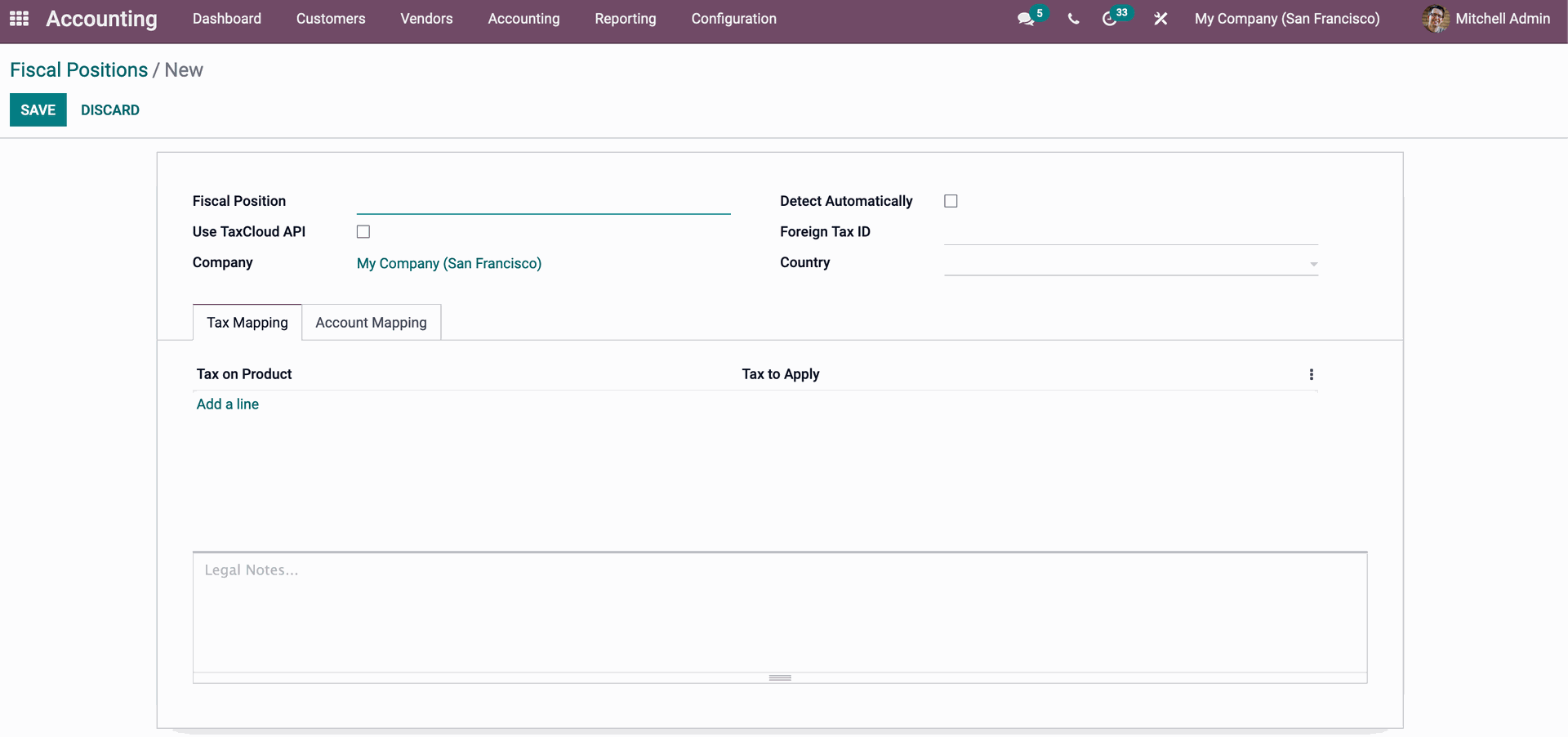
In the Fiscal Position field, give the fiscal position a name. By checking the Detect Automatically Checkbox, you can choose whether or not to detect the tax automatically. Select the Country and enter the Foreign Tax ID in the Foreign Tax ID field.
Mapping of Taxes
The Tax mapping and Account mapping tabs can be configured once the upper section of the configurations section has been configured. To configure the Tax Mapping, click the Add a Line button under the Tax Mapping section, and the line will appear as shown below.
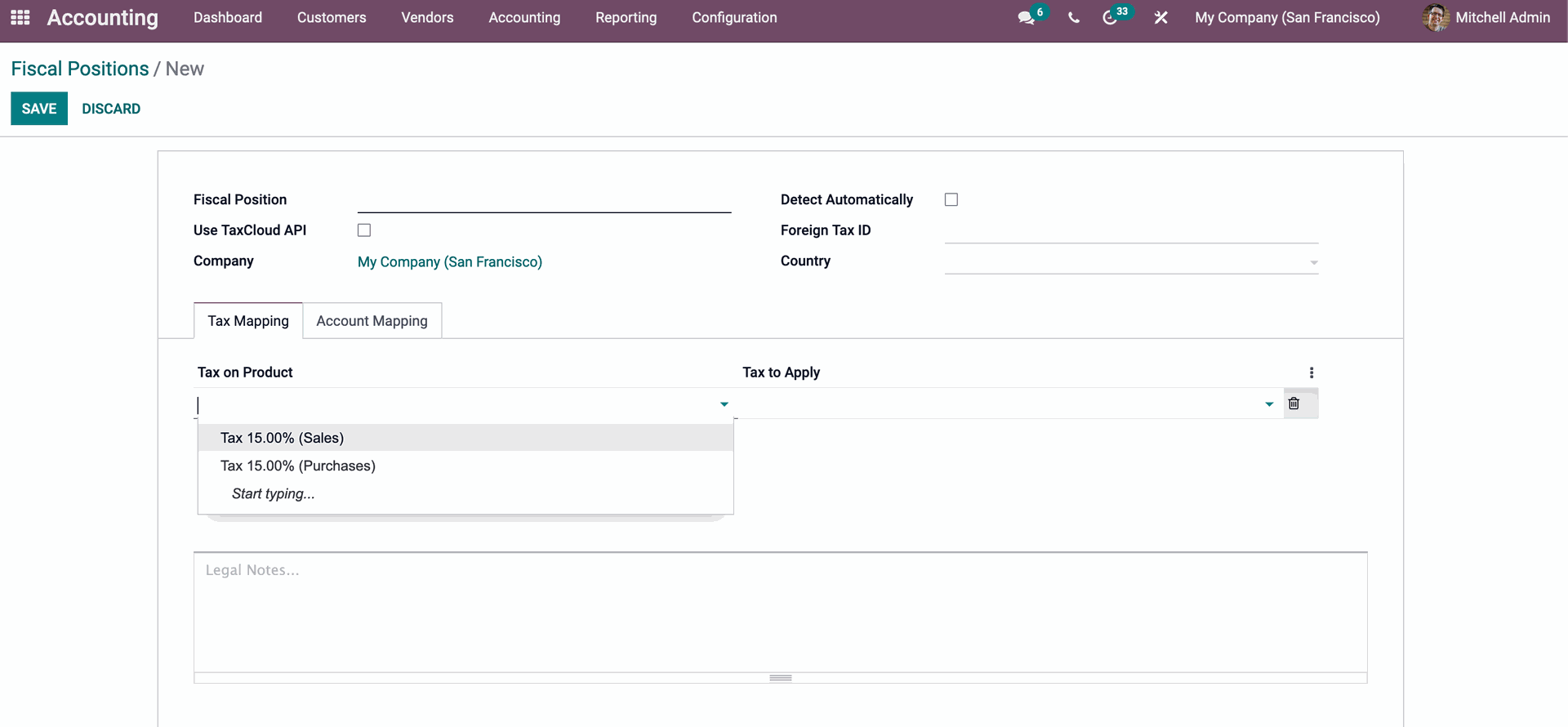
The line will be divided into two sections: tax on the product and tax to be applied. Choose the tax from the list in the Tax on Product area, as shown in the figure above.
We can establish rules like which tax on the product should be mapped to another tax under the Tax Mapping Tab. As a result, 'Tax on Product' refers to the tax that is levied on the product. 'Tax to apply' refers to the tax that should be applied to the product rather than the default product tax.
The 'tax on product' is 15%, but the 'tax to apply' is 5%. When a buyer purchases a product with a 15% tax rate and the fiscal status is 'Dubai,' the tax is automatically reduced to 5%. You can find more taxes by selecting Search more from the drop-down menu. This will take you to a list of Product Taxes, as shown below.

Start writing here...